See which AI is switched on.
Apple Intelligence, Siri and outside AI providers each keep their settings somewhere else. AI Switch puts them on one map, shows what each can reach, and tells you what changed since you last looked. It changes only Siri, and records the original value so you can restore it.
How it works, in three steps.
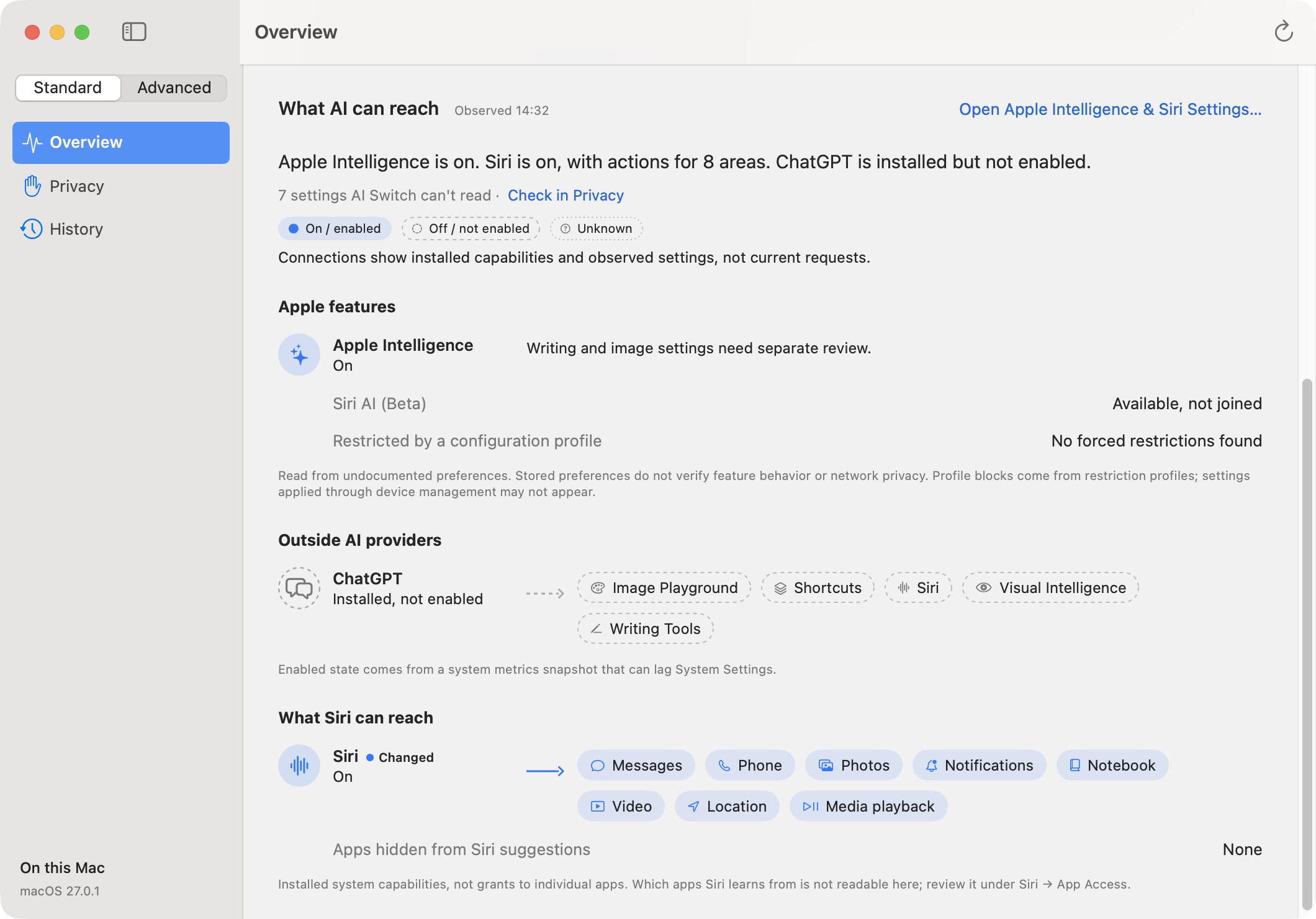
AI Switch reads your settings. It doesn’t watch network traffic or what you ask, so it shows what is configured, not what has been used.
-
See what’s on, and what it can’t read.
Each AI source appears with its state in words and the apps and features it can reach.
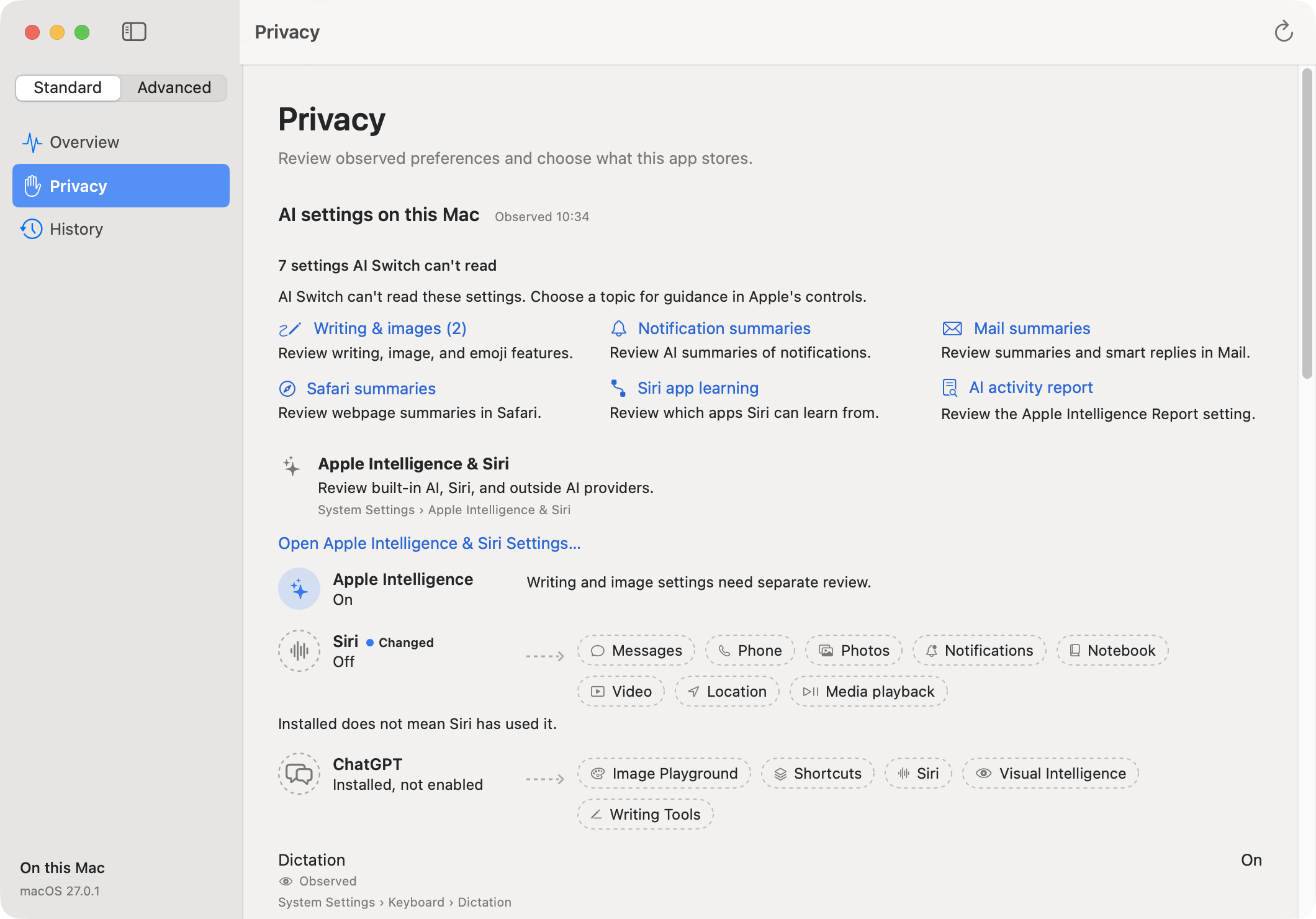
Some settings macOS doesn’t let apps read. For those, a short guided review asks you, and your answer counts only on the macOS version you gave it on. Until then they stay Unknown, never Off.
-
Notice what changed.
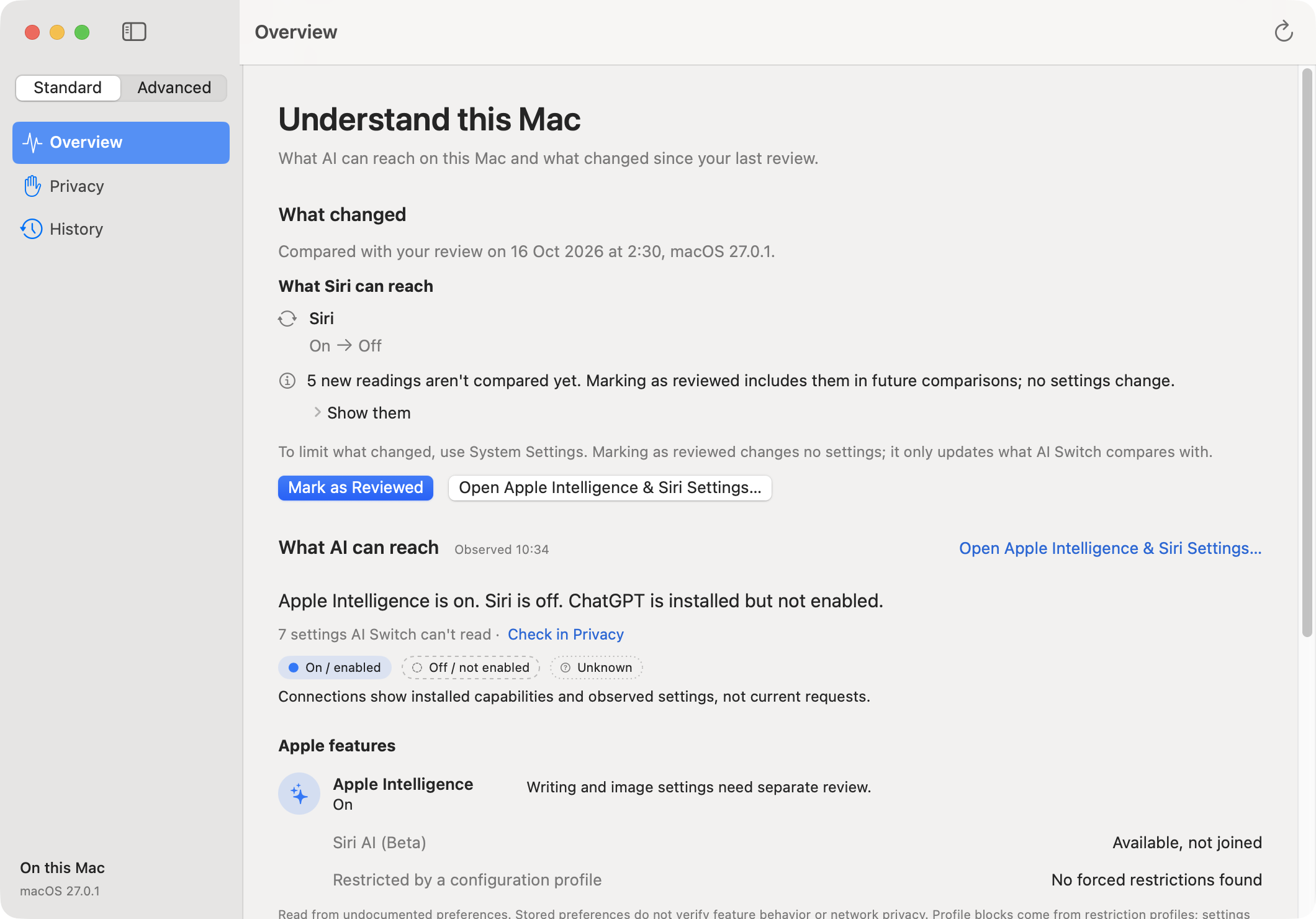
A macOS update, a new app or a profile from work can switch things on. When anything differs from your last review, What changed leads Overview, grouped by where each change lives.
Mark as Reviewed changes no settings. It makes today’s readings the new starting point.
-
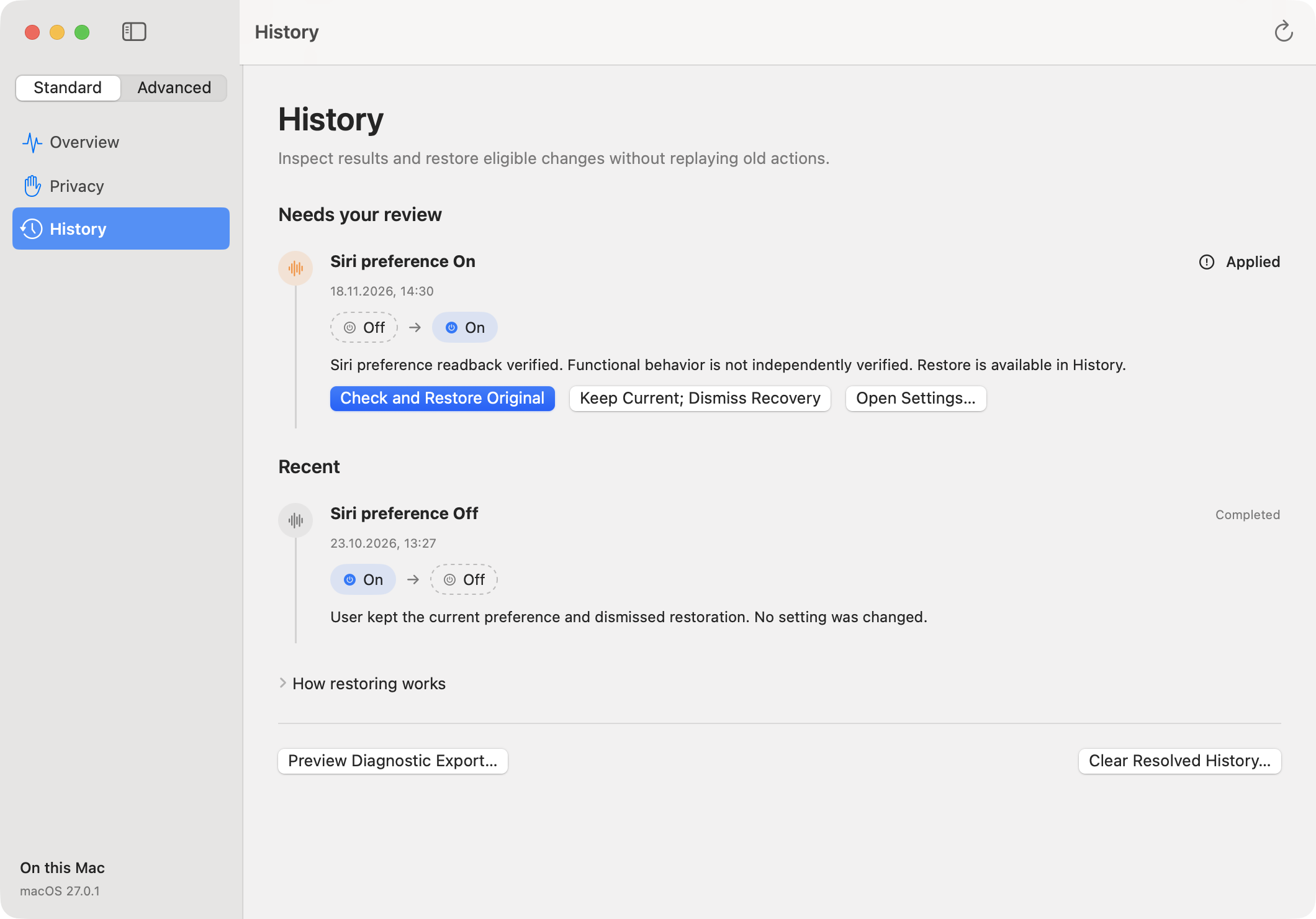
Change Siri, with a way back.
Siri is the one system setting AI Switch changes. Before it does, it records the original value. History lets you restore it, as long as nothing else has changed it since.
For everything else, AI Switch names the System Settings pane where you switch it yourself.
How to read the map.
Words always name the state. Shape and colour only back them up.
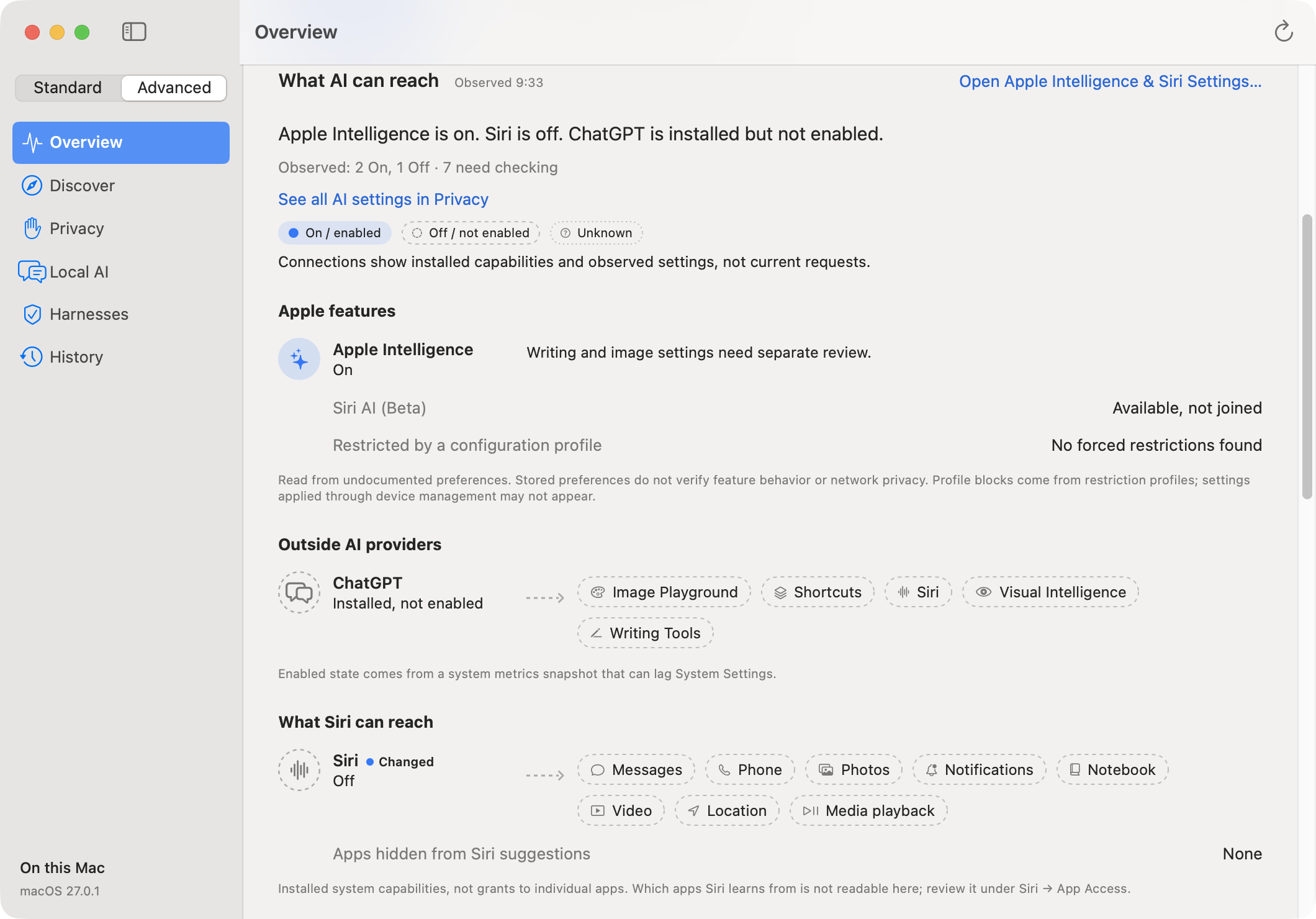
- A source and its stateApple Intelligence, Siri, an outside provider or a configuration profile, with its state in words.
- What it can reachApps and features joined to the source. These are installed capabilities: they don’t prove anything has been used.
- Unknown, drawn differentlyA reading the app can’t take is labelled Unknown and drawn dotted with a question mark, so it is never mistaken for Off.
- What it could and couldn’t readHow many settings were observed On or Off, and how many still need checking.
See it in 15 seconds.
What changed, what AI can reach, the settings macOS hides, and History. No sound.
- What changed since your last review leads Overview
- What AI can reach, source by source
- Settings macOS hides stay Unknown, never Off
- History: each Siri change, and how restoring works
Standard for everyone. Advanced for developers.
One switch in the sidebar. Standard keeps to what most people need; Advanced adds the tools for people who build with AI.
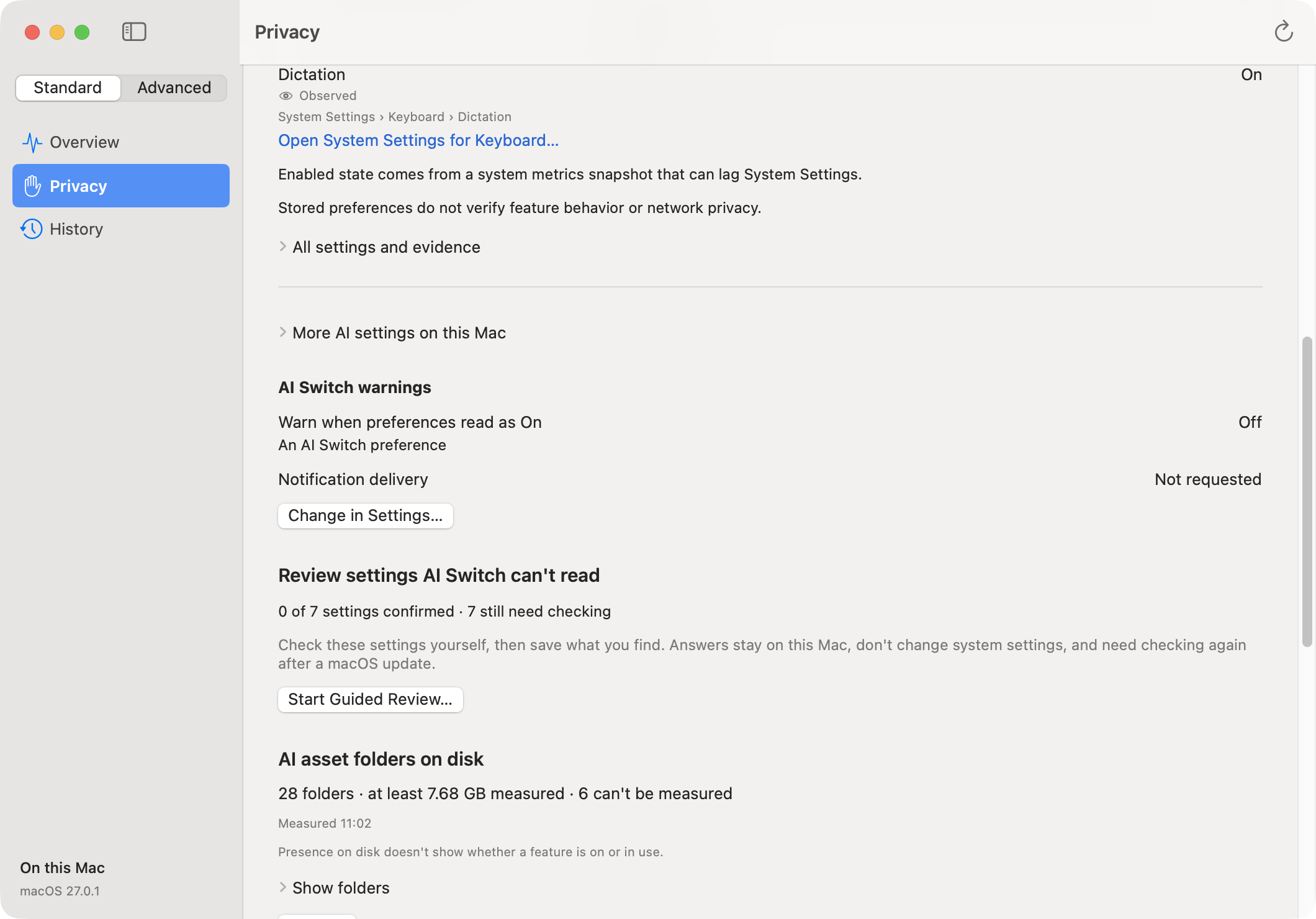
Standard
Overview, Privacy and History.
- The map of what’s on and what it can reach.
- The guided review for settings macOS hides.
- What changed since your last review.
- Siri changes, and restoring them.
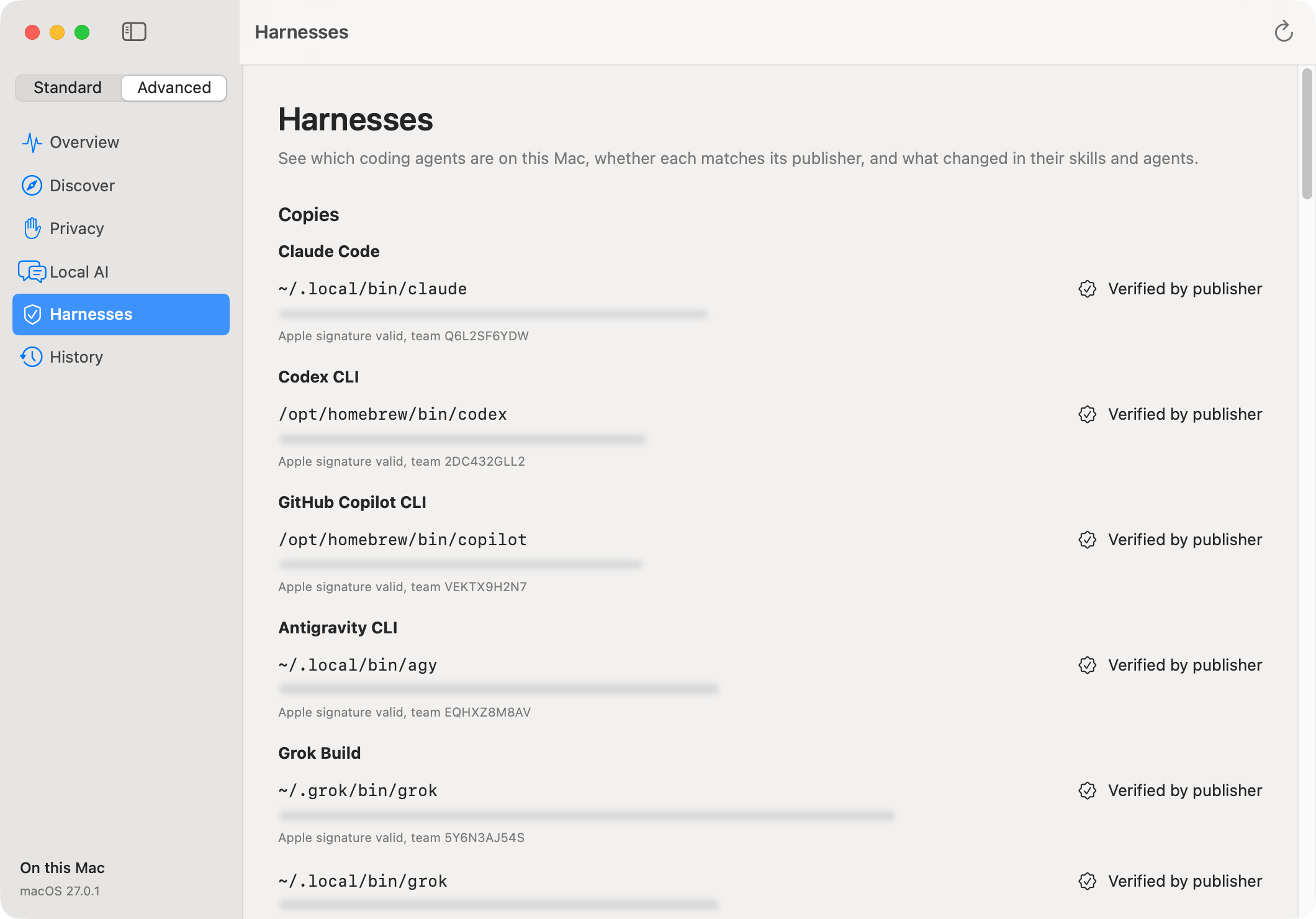
Advanced
Adds Discover, Local AI and Harnesses.
- Claude Code, Codex, Gemini CLI and similar tools found on your Mac, with the evidence behind each copy.
- What changed in their skills, agents, hooks and MCP entries.
- MLX models run on your Mac, where prompts stay.
- Background AI processes and their memory.
AI Switch never runs these tools and never changes them. How the checks work
Advanced tour · 17 seconds · No sound
- Advanced adds Discover, Local AI and Harnesses
- Discover: each capability, its evidence and its limits
- Local AI: MLX models run on your Mac, where prompts stay
- Harnesses: coding agents on your Mac, with the evidence behind each copy
- What changed in their skills, agents, hooks and MCP entries
What it won’t do.
- GuessWhen a reading isn’t available, it says Unknown.
- Promise effectsNo claims about speed or battery. Measured runs are observations.
- Ask for admin rightsNo administrator path, no arbitrary commands, no deleting Apple’s protected model files or a model you imported.
- Send your data anywhereNo analytics, no automatic uploads. Network only when you download a model, or turn on the optional harness checks, which name every host first.
- Keep your conversationsPrompts stay in memory and never reach History or diagnostic exports, unless you choose Save Conversation.
See what’s on.
AI Switch is a free Technical Preview for Macs with Apple silicon running macOS 27 or later. It has been tested on that setup only.